Posey's Tips & Tricks
How to Remotely Manage Linux VMs With RDP
Here's how to deploy a domain-joined Remote Desktop Services environment for Windows RemoteApp, including licensing requirements and session collection configuration, to publish Windows applications to non-domain and Linux clients.
Historically, my network has always consisted solely of Windows machines. Sure, I might occasionally bring a Linux or MacOS virtual machine online in my lab, but my production environment has always been based on Windows. Recently however, I have begun experimenting with running Linux in production. Of course, one of the challenges associated with doing so is that of managing Linux VMs alongside Windows Server VMs. Fortunately, there are several options for doing so.
The option that seems to be favored among Linux administrators involves using SSH. Another option is to use RDP to connect to the Hyper-V server where the Linux VM is running, open the Hyper-V Manager, and then use it to connect to the Linux VM's console. This is a perfectly viable option, but it wasn't really what I was looking for.
Typically, when I need to manage a Windows virtual machine, I use an RDP client to connect directly to the virtual machine. Sure, I could RDP into the Hyper-V server and open the VM through the Hyper-V Manager, but that involves some extra steps. It's quicker and easier to RDP directly into the VM itself.
Ideally, I wanted to use a similar approach for managing my Linux VMs. That way, I could use the RDP client to connect to any virtual machine that I wanted to manage, regardless of whether that VM is running Windows or Linux. That approach seemed more convenient than using one management tool for Windows VMs and a different remote management tool for Linux VMs.
The problem of course, is that Linux does not natively support RDP. However, you can enable RDP based management for Linux servers by installing XRDP. Before I show you how this works, I should quickly mention that I am basing these instructions on Ubuntu. It is also worth noting that if you are running Ubuntu Server, then you will need to have the desktop installed.
To make an Ubuntu device manageable via RDP, begin by opening the Terminal and entering the following commands:
sudo apt update

  sudo apt install xrdp

  sudo systemctl enable xrdp

  sudo systemctl start xrdp
These commands will collectively install and start XRDP. Before you will be able to remotely connect to the system however, you will need to allow RDP traffic through the Linux VM's firewall. RDP traffic normally uses port 3389. The command used to open Port 3389 is:
Sudoi ufw allow 3389/tcp
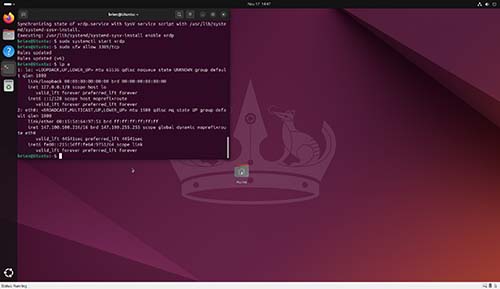
The next thing that you will need to do is to look up the Linux VM's IP address (if you do not already know it) so that you can test RDP connectivity. The command used to display the IP address that is used by a Linux VM is:
ip a
You can see what this looks like in Figure 1.
 [Click on image for larger view.]
Figure 1. You can use the ip a command to display the Linux machine's IP address.
[Click on image for larger view.]
Figure 1. You can use the ip a command to display the Linux machine's IP address.
The process of logging into the Linux VM might be a little bit different from what you are used to if you are in the habit of using RDP to remotely connect to Windows VMs. In order to successfully connect to your Ubuntu VM, you must be logged out of the VM. If there is a session that is logged into the VM, then the RDP client will connect to the Linux VM and then immediately close.
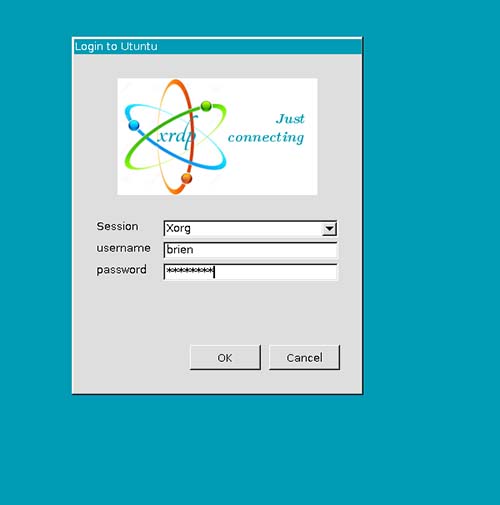
The other thing that you need to know is that when you connect to the Linux VM, you will be presented with a sign in screen similar to the one shown in Figure 2. This sign in screen provides several different session type options. Make sure that you set the session type to Xorg and then enter your Linux credentials. Remember that Linux usernames are typically lower case.
 [Click on image for larger view.]
Figure 2. You will need to enter your Linux credentials on this screen.
[Click on image for larger view.]
Figure 2. You will need to enter your Linux credentials on this screen.
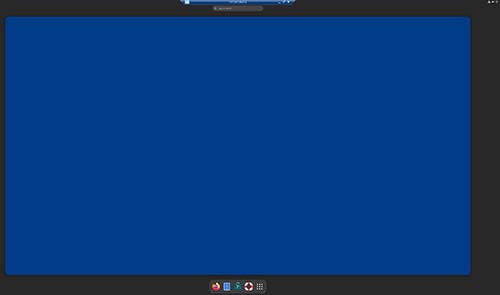
The remainder of the process is similar to that of remotely managing a Windows VM. You need only to open an RDP client and enter the Linux machine's IP address. You can see a remotely attached Linux session in Figure 3.
 [Click on image for larger view.]
Figure 3. I have connected to a Linux VM using RDP.
[Click on image for larger view.]
Figure 3. I have connected to a Linux VM using RDP.
About the Author
Brien Posey is a 22-time Microsoft MVP with decades of IT experience. As a freelance writer, Posey has written thousands of articles and contributed to several dozen books on a wide variety of IT topics. Prior to going freelance, Posey was a CIO for a national chain of hospitals and health care facilities. He has also served as a network administrator for some of the country's largest insurance companies and for the Department of Defense at Fort Knox. In addition to his continued work in IT, Posey has spent the last several years actively training as a commercial scientist-astronaut candidate in preparation to fly on a mission to study polar mesospheric clouds from space. You can follow his spaceflight training on his Web site.