Posey's Tips & Tricks
Using PowerShell for DIY AI Image Creation, Part 2: Stable Diffusion
In Part 2 of this series, we'll learn how to use PowerShell to call the Stable Diffusion API directly, moving from a simple proof-of-concept script to a GUI-based tool for generating AI images on local hardware.
In my first post in this series, I showed you how to set up Stable Diffusion to handle the back end image generation process. Now, I want to show you how to interact with Stable Diffusion using PowerShell. Let's start with a simple proof of concept script:
$Prompt = "Whatever you want to draw"

  $Width = 512

  $Height = 512

  $URL = "http://127.0.0.1:7860/sdapi/v1/txt2img"
$Body = @{

  Prompt =  $Prompt

  Width = $Width

  Height =  $Height

  } | ConvertTo-Json
$Response = Invoke-RestMethod -Uri $url -Method Post  -Body $body -ContentType "application/json"
$ImageData = $Response.Images[0]
$Bytes = [System.Convert]::FromBase64String($ImageData)

  $OutputPath = "C:\temp\output.png"

  [IO.File]::WriteAllBytes($OutputPath, $Bytes)
Write-Host "Image saved to $OutputPath"
If you wanted to use the script above, you would need to replace the $Prompt text (in the first line) with a description of whatever it is that you want to draw. The $Width and $Height variables define the number of pixels that will be used in the image and the $URL variable points to the Web interface that we set up in Part 1.
With these variables in place, I create a JSON object specifying the prompt and the desired resolution. A variable called $Response is tied to the Invoke-RestMethod cmdlet. This is the command that makes the API call and passes the JSON body to the Web interface. A variable called $ImageData stores the first response. From there, the resulting image is written to a .PNG file, which is stored as C:\Temp\Output.png. Finally, once the image has been created (which takes about 30 seconds on my system), a message is displayed indicating that the image has been saved.
As previously noted, this is an extremely minimal example that is meant to serve as a proof of concept. I have actually created a GUI-based and more feature rich script. Keep in mind that the code that I am listing below is a 1.0 release (if that, even) and can likely be improved.
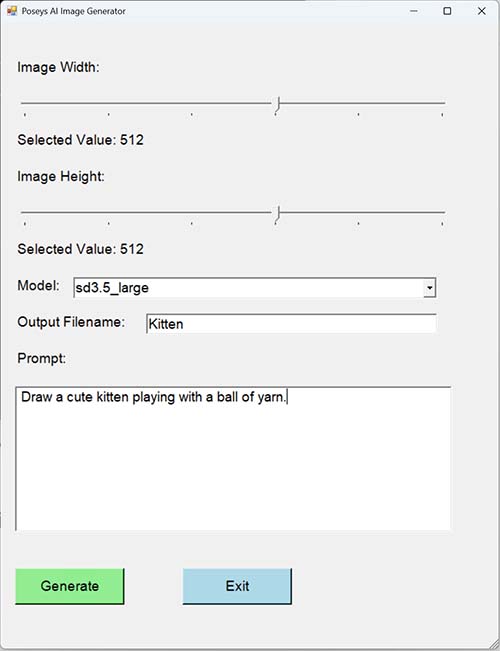
As you can see in Figure 1, I have created a pair of sliders that you can use to set the desired output resolution. Both the horizontal and vertical sliders can go from 64 pixels to 2048 pixels. It is worth noting that the various AI models are each designed to work at a particular resolution and so you must position the slide bars to match the model's requirements. I have had the most success setting the resolution to 1024 x 1024.
There is also a drop down that you can use to specify the model that you want to work with. My proof of concept script just used the default model, but this more full featured script allows you to pick your model of choice. The model that you select is referenced within the JSON body. Next, you have the ability to enter a name for the image that you are creating. The output path is hard coded at the beginning of the script, but is easy to change. Finally, you can enter your prompt. When you are done, click the Generate button to create the image.
 [Click on image for larger view.]
Figure 1. This is what the GUI interface looks like.
[Click on image for larger view.]
Figure 1. This is what the GUI interface looks like.
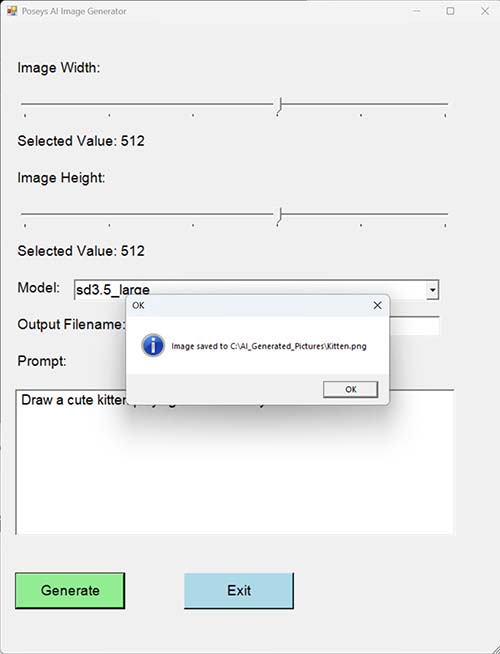
When you click Generate, it will initially seem like nothing is happening. Eventually however, you will see a popup like the one shown in Figure 2, indicating that your picture has been created.
 [Click on image for larger view.]
Figure 2. A PowerShell message box tells you when the image generation process is complete.
[Click on image for larger view.]
Figure 2. A PowerShell message box tells you when the image generation process is complete.
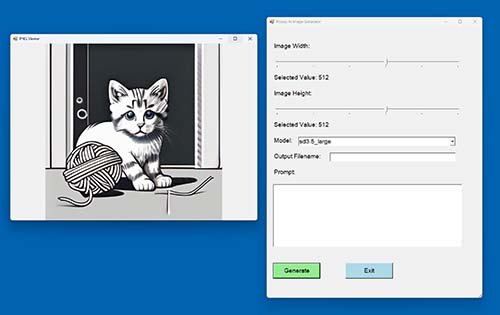
Now, all you need to do is click the OK button, shown in the figure above, and PowerShell will open the picture that has been created. You can see what this looks like in Figure 3. You will notice in the figure that the script is designed to automatically clear the Output Filename text box, as well as the prompt, in order to get ready for the next image that you want to create.
 [Click on image for larger view.]
Figure 3. PowerShell has created this image.
[Click on image for larger view.]
Figure 3. PowerShell has created this image.
So now that I have shown you what my script does and given you a basic explanation of the image configuration process, here is the code:
# Specify the image output path and create it if  necessary
$Path = "C:\AI_Generated_Pictures"

  if (-not (Test-Path $Path)) {

  New-Item  -ItemType Directory -Path $Path | Out-Null

  }
# These are the supported resolutions

  $SliderValues = @(64,128,256,512,1024,2048)
# Create the necessary GUI objects
Add-Type -AssemblyName System.Windows.Forms

  Add-Type -AssemblyName System.Drawing

$Form = New-Object System.Windows.Forms.Form

  $Form.Text = "Poseys AI Image Generator"

  $Form.Size = New-Object System.Drawing.Size(700, 900)

  $Form.StartPosition = 'CenterScreen'

  $Form.AutoScaleMode =  [System.Windows.Forms.AutoScaleMode]::None
$WidthLabel = New-Object System.Windows.Forms.Label

  $WidthLabel.Text = "Image Width:"

  $WidthLabel.Font = New-Object  System.Drawing.Font("Arial", 14)

  $WidthLabel.Location = New-Object  System.Drawing.Point(20, 50)

  $WidthLabel.AutoSize = $True
$WidthSlider = New-Object System.Windows.Forms.TrackBar

  $WidthSlider.Location = New-Object  System.Drawing.Point(20, 100)

  $WidthSlider.Minimum = 0

  $WidthSlider.Maximum = $SliderValues.Count - 1

  $WidthSlider.TickStyle = 'BottomRight'

  $WidthSlider.TickFrequency = 1

  $WidthSlider.Width = 600
$WidthSliderLabel = New-Object System.Windows.Forms.Label

  $WidthSliderLabel.Text = "Selected Value: 64"

  $WidthSliderLabel.Font = New-Object  System.Drawing.Font("Arial", 14)

  $WidthSliderLabel.Location = New-Object  System.Drawing.Point(20, 150)

  $WidthSliderLabel.AutoSize = $True
$HeightLabel = New-Object System.Windows.Forms.Label

  $HeightLabel.Text = "Image Height:"

  $HeightLabel.Font = New-Object  System.Drawing.Font("Arial", 14)

  $HeightLabel.Location = New-Object  System.Drawing.Point(20, 200)

  $HeightLabel.AutoSize = $True
$HeightSlider = New-Object System.Windows.Forms.TrackBar

  $HeightSlider.Minimum = 0

  $HeightSlider.Maximum = $SliderValues.Count - 1

  $HeightSlider.Location = New-Object  System.Drawing.Point(20, 250)

  $HeightSlider.TickStyle = 'BottomRight'

  $HeightSlider.TickFrequency = 1

  $HeightSlider.Width = 600
$HeightSliderLabel = New-Object  System.Windows.Forms.Label

  $HeightSliderLabel.Text = "Selected Value: 64"

  $HeightSliderLabel.Font = New-Object  System.Drawing.Font("Arial", 14)

  $HeightSliderLabel.Location = New-Object  System.Drawing.Point(20, 300)

  $HeightSliderLabel.AutoSize = $True
$ModelLabel = New-Object System.Windows.Forms.Label

  $ModelLabel.Text = "Model:"

  $ModelLabel.Font = New-Object  System.Drawing.Font("Arial", 14)

  $ModelLabel.Location = New-Object  System.Drawing.Point(20, 350)

  $ModelLabel.AutoSize = $True
$ModelDropDown = New-Object System.Windows.Forms.ComboBox

  $ModelDropDown.Location = New-Object  System.Drawing.Point(100, 350)

  $ModelDropDown.Size = New-Object  System.Drawing.Size(500,50)

  $ModelDropDown.Font = New-Object  System.Drawing.Font("Arial", 14)
$FileNameLabel = New-Object System.Windows.Forms.Label

  $FileNameLabel.Text = "Output Filename:"

  $FileNameLabel.Font = New-Object  System.Drawing.Font("Arial", 14)

  $FileNameLabel.Location = New-Object  System.Drawing.Point(20, 400)

  $FileNameLabel.AutoSize = $True
$FileNameTextBox = New-Object  System.Windows.Forms.TextBox

  $FileNameTextBox.Text = ""

  $FileNameTextBox.Location = New-Object  System.Drawing.Point(200,400)

  $FileNameTextBox.Size = New-Object  System.Drawing.Size(400,50)

  $FileNameTextBox.Font = New-Object  System.Drawing.Font("Arial", 14)

  $FileNameTextBox.ReadOnly = $False
$PromptLabel = New-Object System.Windows.Forms.Label

  $PromptLabel.Text = "Prompt:"

  $PromptLabel.Font = New-Object  System.Drawing.Font("Arial", 14)

  $PromptLabel.Location = New-Object  System.Drawing.Point(20, 450)

  $PromptLabel.AutoSize = $True
$PromptTextBox = New-Object System.Windows.Forms.TextBox

  $PromptTextBox.Text = ""

  $PromptTextBox.Location = New-Object  System.Drawing.Point(20,500)

  $PromptTextBox.Size = New-Object  System.Drawing.Size(600,200)

  $PromptTextBox.Font = New-Object  System.Drawing.Font("Arial", 14)

  $PromptTextBox.ReadOnly = $False

  $PromptTextBox.Multiline = $True
$GenerateButton = New-Object System.Windows.Forms.Button

  $GenerateButton.Text = "Generate"

  $GenerateButton.Location = New-Object  System.Drawing.Point(20,750)

  $GenerateButton.Size = New-Object  System.Drawing.Size(150, 50)

  $GenerateButton.BackColor=[System.Drawing.Color]::LightGreen

  $GenerateButton.Font = New-Object  System.Drawing.Font("Arial", 14)
$ExitButton = New-Object System.Windows.Forms.Button

  $ExitButton.Text = "Exit"

  $ExitButton.Location = New-Object  System.Drawing.Point(250,750)

  $ExitButton.Size = New-Object System.Drawing.Size(150,  50)

  $ExitButton.BackColor=[System.Drawing.Color]::LightBlue

  $ExitButton.Font = New-Object  System.Drawing.Font("Arial", 14)

  $ExitButton.Add_Click{

  $Form.Close() | Out-Null

  }
# Add the GUI Objects to the Form
$Form.Controls.Add($ModelLabel)

  $Form.Controls.Add($WidthLabel)

  $Form.Controls.Add($HeightLabel)

  $Form.Controls.Add($PromptLabel)

  $Form.Controls.Add($FileNameLabel)

  $Form.Controls.Add($WidthSliderLabel)

  $Form.Controls.Add($HeightSliderLabel)

  $Form.Controls.Add($PromptTextBox)

  $Form.Controls.Add($FileNameTextBox)

  $Form.Controls.Add($ModelDropDown)

  $Form.Controls.Add($GenerateButton)

  $Form.Controls.Add($ExitButton)

  $Form.Controls.Add($WidthSlider)

  $Form.Controls.Add($HeightSlider)

# Update labels whenever width or height sliders move

  $WidthSlider.Add_ValueChanged({

  $WidthIndex =  $WidthSlider.Value

  $WidthSliderLabel.Text = "Selected Value:  $($SliderValues[$WidthIndex])"

  })
$HeightSlider.Add_ValueChanged({

  $HeightIndex =  $HeightSlider.Value

  $HeightSliderLabel.Text = "Selected Value:  $($SliderValues[$HeightIndex])"

  })

# Populate list of models
$Models = Invoke-RestMethod -Uri  "HTTP://127.0.0.1:7860/sdapi/v1/sd-models"

  ForEach ($Model in $Models) {

  $ModelDropDown.Items.Add($Model.model_name) | Out-Null

  }

  $ModelDropDown.SelectedIndex=0
$GenerateButton.Add_Click{
# Make sure that a filename has been provided.
If ($FileNameTextBox.Text -eq ""){

  $result = [System.Windows.Forms.MessageBox]::Show(

  "You Must  Enter a Filename.",

  "Error",

  [System.Windows.Forms.MessageBoxButtons]::OK,

  [System.Windows.Forms.MessageBoxIcon]::Error

  )
if ($result -eq [System.Windows.Forms.DialogResult]::OK)  {

  Exit

  }

  }
# Make sure that the prompt is not blank.

  If ($PromptTextBox.Text -eq ""){

  $result = [System.Windows.Forms.MessageBox]::Show(

  "You Must  Enter a Prompt.",

  "Error",

  [System.Windows.Forms.MessageBoxButtons]::OK,

  [System.Windows.Forms.MessageBoxIcon]::Error

  )
if ($result -eq [System.Windows.Forms.DialogResult]::OK)  {

  Exit

  }

  }

$Prompt = $PromptTextBox.Text

  $Width = $SliderValues[$WidthSlider.Value]

  $Height = $SliderValues[$HeightSlider.Value]

  $Model = $ModelDropDown.SelectedItem

  $FullPath = $Path + "\" + $FileNameTextBox.Text  + ".png"

  $URL = "http://127.0.0.1:7860/sdapi/v1/txt2img"
$Body = @{

  sd_model_checkpoint = $Model

  prompt =  $Prompt

  width = $Width

  height =  $Height

  } | ConvertTo-Json
try {

  $Response =  Invoke-RestMethod -Uri $URL -Method Post -Body $Body -ContentType  "application/json"

  } catch {

  $Result =  [System.Windows.Forms.MessageBox]::Show(

  "The API  call has failed.",

  "Error",

  [System.Windows.Forms.MessageBoxButtons]::OK,

  [System.Windows.Forms.MessageBoxIcon]::Error

  )
If ($result -eq [System.Windows.Forms.DialogResult]::OK)  {

  Exit

  }

  }

$ImageData = $Response.Images[0]
$Bytes = [System.Convert]::FromBase64String($ImageData)

  [IO.File]::WriteAllBytes($FullPath, $bytes)
$Result = [System.Windows.Forms.MessageBox]::Show(

  "Image  saved to $FullPath",

  "OK",

  [System.Windows.Forms.MessageBoxButtons]::OK,

  [System.Windows.Forms.MessageBoxIcon]::Information

  )
if ($Result -eq [System.Windows.Forms.DialogResult]::OK)  {
# Clear the Text Boxes
$FileNameTextBox.Text = ""

  $PromptTextBox.Text = ""
# Display the image that was generated
$ImageForm = New-Object System.Windows.Forms.Form

  $ImageForm.Text = "PNG Viewer"

  $ImageForm.Width = 800

  $ImageForm.Height = 600
# Create PictureBox

  $PictureBox = New-Object System.Windows.Forms.PictureBox

  $PictureBox.Dock = "Fill"

  $PictureBox.SizeMode =  [System.Windows.Forms.PictureBoxSizeMode]::Zoom

  $PictureBox.Image =  [System.Drawing.Image]::FromFile($FullPath)
# Add to form

  $ImageForm.Controls.Add($PictureBox)
# Show form

  [void]$ImageForm.ShowDialog()

  }
}
# Display GUI Form

  $Form.ShowDialog()
About the Author
Brien Posey is a 22-time Microsoft MVP with decades of IT experience. As a freelance writer, Posey has written thousands of articles and contributed to several dozen books on a wide variety of IT topics. Prior to going freelance, Posey was a CIO for a national chain of hospitals and health care facilities. He has also served as a network administrator for some of the country's largest insurance companies and for the Department of Defense at Fort Knox. In addition to his continued work in IT, Posey has spent the last several years actively training as a commercial scientist-astronaut candidate in preparation to fly on a mission to study polar mesospheric clouds from space. You can follow his spaceflight training on his Web site.