Posey's Tips & Tricks
Let Copilot Manage Your Outlook Calendar, Part 1
Microsoft 365 Copilot's new Calendar Instructions feature lets Outlook users create rules for automatically accepting, declining or following meetings based on specific conditions.
Recently, Microsoft has been rolling out a new Outlook feature that I am really excited about. Microsoft 365 Copilot can now manage your Outlook calendar so that you don't have to do it manually. Don't get me wrong… I'm not talking about completely handing all authority over your calendar to Copilot. That would be horrible! What I am talking about is being able to give Copilot a set of ground rules and letting it manage your calendar based on the rules that you have established.
Once again, this isn't about ceding authority over your own calendar. You can give Copilot very specific instructions that allow it to take action in certain situations, while leaving your calendar alone the rest of the time. Now in all fairness, this capability is still new, so it remains to be seen how well it will work out. Even so, I am optimistic that this will end up being one of those features that makes life easier -- not harder.
So before I show you how this works, I need to point out that the Calendar Instructions feature is specific to the "new Outlook." If you are like me and are clinging to the old Outlook until they eventually take it away, there is still a way to take advantage of the Calendar Instructions feature. You can enable it through Outlook on the Web. Just keep in mind that in any case, you will need a Microsoft 365 Copilot subscription in order to use this new feature.
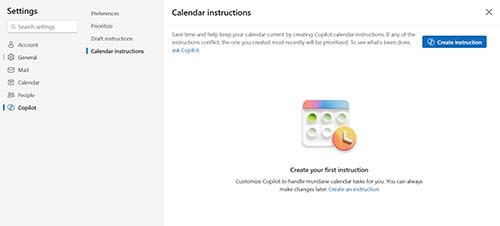
With that said, enabling Copilot Calendar Instructions couldn't be easier. To get started, click on the Settings icon. When the Settings screen opens, select the Copilot option, followed by the Preferences option. Here, you will need to make sure that the Turn On Copilot option is enabled. Next, click on the Calendar Instructions option. You can see what the resulting screen looks like in Figure 1.
 [Click on image for larger view.]
Figure 1. This is where you go to configure calendar instructions.
[Click on image for larger view.]
Figure 1. This is where you go to configure calendar instructions.
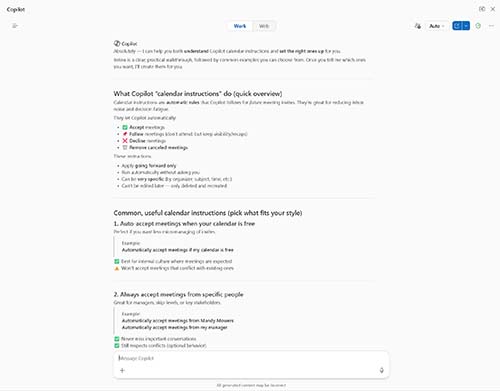
The next step in the process is to click on the Create Instructions button. This will drop you back into the usual Outlook screen, but a pane will open on the right side of the screen that will help you to create calendar instructions. As you can see in Figure 2, this screen provides you with a few examples of what you can do with Copilot.
 [Click on image for larger view.]
Figure 2. Microsoft provides guidance for creating calendar instructions.
[Click on image for larger view.]
Figure 2. Microsoft provides guidance for creating calendar instructions.
When you create Copilot instructions, what you are really doing is creating automatic calendar rules. These rules differ from the old school calendar rules in that you can be as specific as you like. Conversely, when you manually create Outlook rules, you sometimes have to come up with some creative workarounds in order to get Outlook to do what you want it to do. With Copilot however, the rules just work.
So what types of things can you accomplish by using Calendar instructions? At a basic level, you can use calendar instructions to automatically accept meetings, follow meetings (don't attend the meeting, but keep tabs on meeting recaps), decline meetings or remove canceled meetings.
Admittedly, these actions don't sound all that powerful. Keep in mind however, that the instructions can be super specific. As an example, back in 2020, I wrote an article called "Ridding Your Outlook Calendar of Unwanted Meetings." At the time, I was a part of a group that sent out three to five meeting requests every single day. It's a long story, but these meetings didn't have anything to do with me, and so there was no reason why I had to attend.
Of course, declining a meeting is a simple matter. Even so, I found that I was wasting a lot of time manually declining unwanted meeting requests and that I was regularly bombarded by reminders for meetings that I had forgotten to decline. I also had a lot of problems with others not being able to schedule meetings with me because my calendar was jam packed with meetings that had been added without my permission.
In my article, I came up with a workaround to automatically get rid of these unwanted meetings. It wasn't a perfect solution, but it was certainly better than nothing. Today however, this situation could have been handled much differently and much more easily, thanks to Copilot. If the situation were still ongoing, I could just create a calendar instruction telling Copilot to decline all meeting requests from that particular group.
Declining certain meeting requests is the first use case that comes to mind, simply because the unwanted meeting requests that I discussed were so disruptive for me. Even so, dodging unwanted meetings is really just the tip of the iceberg with regard to how you can use calendar instructions. In part 2 of this series, I will go into greater detail about what you can and cannot do using calendar instructions.
About the Author
Brien Posey is a 22-time Microsoft MVP with decades of IT experience. As a freelance writer, Posey has written thousands of articles and contributed to several dozen books on a wide variety of IT topics. Prior to going freelance, Posey was a CIO for a national chain of hospitals and health care facilities. He has also served as a network administrator for some of the country's largest insurance companies and for the Department of Defense at Fort Knox. In addition to his continued work in IT, Posey has spent the last several years actively training as a commercial scientist-astronaut candidate in preparation to fly on a mission to study polar mesospheric clouds from space. You can follow his spaceflight training on his Web site.