Posey's Tips & Tricks
Best Practices for PowerShell Script Version Control, Part 2
Here are some practical version-control habits for PowerShell scripts, including separating change types, retaining old versions and embedding version details in script headers or app interfaces.
In the first part of this blog series, I talked about the role that version numbers play. Now, I want to talk about some other best practices pertaining to version control for PowerShell scripts.
One such best practice is that of using one logical change per version. There are varying opinions on this philosophy and if or how it should be implemented, but let me give you my take. The way that I personally adopt the "one logical change per version philosophy" is different from what others might do. Instead of making it so that each version literally includes only a single change, I approach version control from the standpoint of not mixing change types. Let me give you an example.
Let's suppose for a moment that I have a long and complex script and that I discover several bugs in that script. I'm not going to waste time creating a new version of the script for each bug fix. Instead, I am going to fix all of the bugs at once and incorporate multiple bug fixes into a single patch version. Similarly, if I want to add some features to a script, I might incorporate several new features into a single minor release. As long as you take the time to thoroughly test the code, there is nothing wrong with this approach. What I don't do however, is to incorporate bug fixes and new features into a single new version. Each script version that I create is either a patch release, a minor release, or a major release. It is never a combination of release types.
Another best practice that I have adopted is that of version retention. I always hang onto old script versions, even if it seems like I will never need them again. There have just been too many times when I have needed to refer back to old code.
The way that I personally manage version retention is to create a folder for storing the script and then create subfolders for each version. For example, if I were to create a disk management script, I might create a folder called Disk Management and create a series of subfolders, each of which has a name that reflects the version number. Some examples of subfolder names might include 1.0.0, 1.0.1, and 1.0.2.
As a rule, once I have created a version of a script, that version is never modified. As an example, I wouldn't create script version 1.2.3 and then come back a few days later and make some changes to it. Any changes would go into a new version of the code. Existing versions are never, ever modified. Instead, I copy the code to a new location, assign it a new version number, and then make the intended modifications.
This brings up an important point. When I assign a version number to a PowerShell script, I do not use that number solely as a folder name. The version number is integrated into the script itself. However, the way that I incorporate the version number varies depending on the script.
If a PowerShell script is self contained (meaning that all of the code exists within a single file), then I usually add a standardized header to the beginning of the file. Here is what the header looks like:
<#

.SYNOPSIS

Disk management utility


.VERSION

1.2.3


.AUTHOR

Brien Posey


.CREATED

01-01-2025


.LASTMODIFIED

02-01-2026


.CHANGELOG


1.2.3 Fixed a misspelling

1.2.2 Fixed a date formatting bug

1.2.1 Fixed a parsing bug

1.2.0 Added even more features

1.1.0 Added a few new features

1.0.0 Initial Release


#>
Notice that this standardized header starts with <# and ends with #>. PowerShell considers any text that exists between these two markers to be a comment, meaning that the text will be ignored.
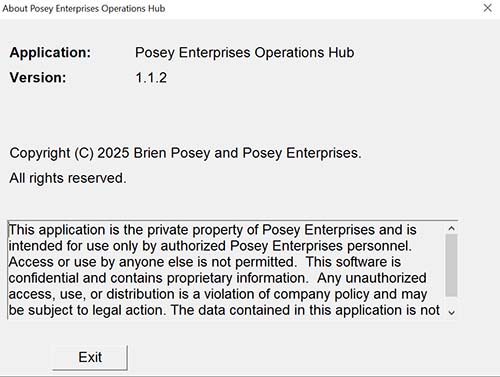
For longer, more complex scripts that involve multiple files, I handle things a bit differently. To give you an example, I have a line of business application that I wrote in PowerShell. This application consists of nearly 200 individual PowerShell files. It wouldn't be practical to store a change log in every single file. Instead, I have created a menu option that can be used to open an About screen. This About screen, which you can see in Figure 1, lists the version information. I store the change log in a SQL Server table and make the change log data accessible through a menu option. I have another multi-file PowerShell application that is not database driven, and so I keep the change log in a CSV file.
 [Click on image for larger view.]
Figure 1. This Is the About Screen in One of My Custom PowerShell Applications.
[Click on image for larger view.]
Figure 1. This Is the About Screen in One of My Custom PowerShell Applications.
About the Author
Brien Posey is a 22-time Microsoft MVP with decades of IT experience. As a freelance writer, Posey has written thousands of articles and contributed to several dozen books on a wide variety of IT topics. Prior to going freelance, Posey was a CIO for a national chain of hospitals and health care facilities. He has also served as a network administrator for some of the country's largest insurance companies and for the Department of Defense at Fort Knox. In addition to his continued work in IT, Posey has spent the last several years actively training as a commercial scientist-astronaut candidate in preparation to fly on a mission to study polar mesospheric clouds from space. You can follow his spaceflight training on his Web site.