Posey's Tips & Tricks
Providing Microsoft With Admin Initiated Copilot Feedback
Microsoft now lets global and AI admins submit detailed diagnostic logs and user-specific context to help improve Copilot performance when issues arise.
In spite of all of the marketing hype, Microsoft 365 Copilot might not always live up to your expectations. That isn't to say that Copilot is bad, but rather that its performance can vary based on use case. In my own organization for example, there are times when Microsoft 365 Copilot gives me exactly what I need. In other cases however, Copilot has completely dropped the ball.
Thankfully, AI models like those used by Microsoft 365 Copilot do improve over time, as they receive additional training. That being the case, it's important to let Microsoft know when Microsoft 365 Copilot does a bad job.
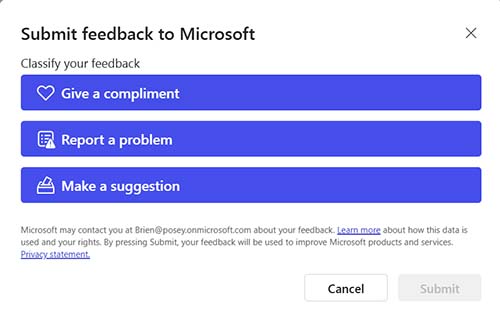
End users can easily provide their own feedback to Microsoft by opening Copilot Chat, clicking on the More icon (the three dots) and selecting the Send Feedback command from the resulting menu. As you can see in Figure 1, a user can provide a compliment, make a suggestion, or report a problem.
 [Click on image for larger view.]
Figure 1. End users can provide feedback about Copilot to Microsoft through this interface.
[Click on image for larger view.]
Figure 1. End users can provide feedback about Copilot to Microsoft through this interface.
In spite of such capabilities, it's a safe bet that most of your end users probably aren't going to take the time to give Microsoft feedback about their Copilot experience. Even if they do, an end user might not provide the details that would make their feedback useful. This is where admin initiated Copilot feedback comes into play.
The idea behind admin initiated copilot feedback is that you as an administrator are probably more in tune with your organization's Copilot usage than anyone else is. You know what is working, what isn't working, who has been experiencing problems recently and which issues are persistent across the entire organization. As such, you are in a position to provide Microsoft with feedback that is likely to be far more meaningful and helpful than what they might receive from end users.
In order to provide admin initiated Copilot feedback to Microsoft, you will need a Microsoft 365 Copilot license and you will need to be a Global Admin or an AI Admin within your organization's Microsoft 365 tenant. Additionally, you will need to know the Microsoft 365 email address for someone in your organization who has been affected by the issue that you are reporting.
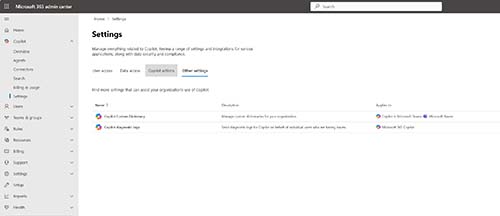
To get started, open the Microsoft 365 Admin Center and then expand the Copilot tab. Now, click on Settings, followed by Other Settings. Now, click on the Copilot Diagnostic Logs option, shown in Figure 2.
 [Click on image for larger view.]
Figure 2. Click on the Copilot Diagnostic Logs option.
[Click on image for larger view.]
Figure 2. Click on the Copilot Diagnostic Logs option.
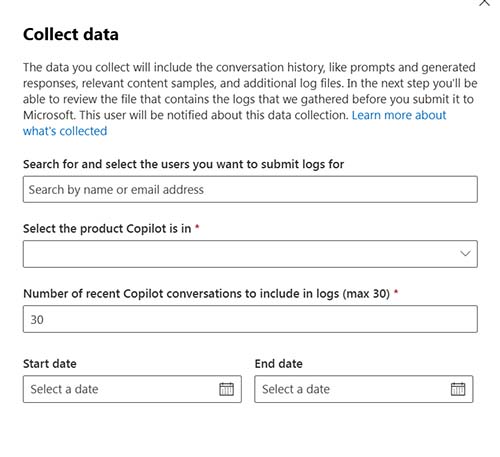
When prompted, click on the Start button and you will be taken to the Collect Data screen, which you can see in Figure 3. Here you will need to enter the email address for someone who is affected by the problem that you want to report. You will also need to choose the specific Copilot that is associated with the problem. As an example, this might be Microsoft 365 Copilot, Copilot in Excel, Microsoft Bing, or something else.
The next thing that you will need to select is a date range during which the problem was known to have occurred. You will also have to choose how many Copilot conversations you want to include in the diagnostic data (the maximum is 30).
 [Click on image for larger view.]
Figure 3. This is the interface used to initiate admin feedback for Copilot.
[Click on image for larger view.]
Figure 3. This is the interface used to initiate admin feedback for Copilot.
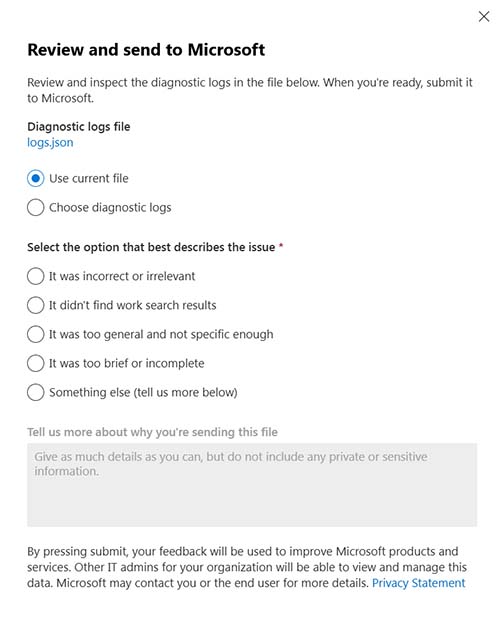
When you click Next, Copilot will provide you with some diagnostic logs. Depending on which Copilot you are reporting an issue with, you might be provided with an opportunity to select which specific prompts and responses to include in your feedback. In other cases, the prompts and responses will be rolled into a JSON file, as shown in Figure 4. You can see the file's contents by clicking on the file name.
 [Click on image for larger view.]
Figure 4. The search returned a JSON file containing recent prompts and responses.
[Click on image for larger view.]
Figure 4. The search returned a JSON file containing recent prompts and responses.
Incidentally, you can create your own JSON file to send to Microsoft if the file that is provided by the search is not truly representative of your issue. Just select the Choose Diagnostic Log option and upload a JSON file of your choosing.
Now all you have to do is to select the option that best describes the issue that you are having. There is also a text box that you can use to provide any additional information about the issue. When you are done, click the Submit button to complete the process.
About the Author
Brien Posey is a 22-time Microsoft MVP with decades of IT experience. As a freelance writer, Posey has written thousands of articles and contributed to several dozen books on a wide variety of IT topics. Prior to going freelance, Posey was a CIO for a national chain of hospitals and health care facilities. He has also served as a network administrator for some of the country's largest insurance companies and for the Department of Defense at Fort Knox. In addition to his continued work in IT, Posey has spent the last several years actively training as a commercial scientist-astronaut candidate in preparation to fly on a mission to study polar mesospheric clouds from space. You can follow his spaceflight training on his Web site.