Posey's Tips & Tricks
Preventing Microsoft 365 Phishing Attacks, Part 3: Damage Control
Microsoft 365 administrators can fine-tune Defender's anti-phishing policies to determine how detected spoofed or impersonated messages are handled, from quarantine and deletion to user safety tips that flag suspicious senders.
In my previous article in this series, I showed you various options for protecting your organization against email messages who spoof or impersonate trusted users. Now, I want to turn my attention to controlling what happens if a spoofed or impersonated message is detected. For the purposes of this article, I am going to assume that the controls discussed in Part 2 have been configured.
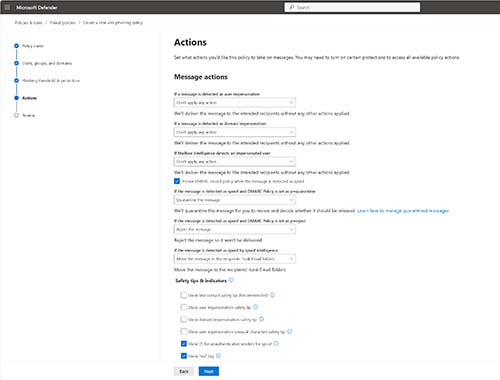
So with that said, you can control Microsoft Defender's response to a spoofed or impersonated message by going to the Create a New Anti-Phishing Policy wizard's Actions screen. You can see what this screen looks like in Figure 1.
 [Click on image for larger view.]
Figure 1. The Actions screen controls how Microsoft Defender responds to spoofed or impersonated messages
[Click on image for larger view.]
Figure 1. The Actions screen controls how Microsoft Defender responds to spoofed or impersonated messages
The first option found on this screen allows you to control what will happen if a message is found to be an impersonation. By default, no action is taken. However, you do have several options. These options include forwarding the message, placing the message into the recipient's junk filter, quarantining the message, deleting the message and delivering the message and add other addresses to the BCC list.
These same actions can be taken on messages that are found to be impersonating a domain. It is worth noting however, that you have the option of applying one action to messages that impersonate users and a different action to messages that impersonate users a domain.
As you may recall from the previous article, anti-phishing policies can leverage mailbox intelligence, which uses AI to help to determine whether or not a message is impersonating a user. There are two separate settings for controlling what happens when a user is impersonated and controlling what happens when mailbox intelligence detects that a user has been impersonated.
The next setting that you will find within the list of available options is a checkbox that, when selected, will cause the anti-phishing policy to honor the DMARC record policy for any message that is found to be a spoof.
For those who might not be familiar with the term, DMARC stands for Domain-based Message Authentication, Reporting and Conformance. DMARC is a protective mechanism for emails that use the Sender Policy Framework (SPF) and Domain Keys Identification Mail (DKIM) to verify that the person who sent an email message is who they claim to be.
The DMARC policy can be set to quarantine or to reject certain messages. If you configure Microsoft Defender to honor the DMARC policy then messages for which the DMARC policy is set to Quarantine can either be quarantined or they can be sent to the recipient's junk mail folder. If, on the other hand, the DMARC policy is set to Reject, then you have the option of quarantining the message, rejecting the message, or moving the message to the recipient's junk mail folder.
Even if you choose to handle spoofed messages based on the DMARC policy, there is a separate setting that you can use to determine what will happen to messages that the Spoof Intelligence feature determines to be spoofed. In such cases, you have the option of either moving the message to the recipient's junk mail folder or you can opt to quarantine the message.
Finally, there are a series of checkboxes at the bottom of the screen that you can use to enable various indicators. The first of these checkboxes allows you to enable the first contact safety tip.
Suppose for example, that a particular user gets email from another person on a regular basis. Now let's suppose that an attacker impersonates the sender's email address. Microsoft Defender can recognize that the sender's address is not the address that is normally used and can apply a tip to the message informing the recipient that this is the first time that they have ever received a message from this particular address. The message can also inform the recipient that they do not often receive messages from this address.
The next two checkboxes allow safety tips to be applied to messages when user impersonation or domain impersonation is suspected. In such cases, the recipient will see a message that says, “This sender appears to be similar to someone who previously sent you email, but may not be that person” or “This sender might be impersonating a domain that's associated with your organization”.
The Show User Impersonation Unusual Characters Safety Tip checkbox works similarly to the other checkboxes that I have mentioned, but causes a different message to be displayed when unusual characters are detected. An example of a message that might be displayed could be, [email protected] includes unexpected letters or numbers. We recommend that you don't interact with this message.
The last two checkboxes provide visual cues for fraudulent messages. You can for example, display ? for unauthenticated senders or show a Via tag when a sender is being spoofed. As an example, a message that appears to be from [email protected] might include a tag that says something like [email protected] vis Fabrikam.com. Such a message would show the recipient that the message actually originated in a different domain.
About the Author
Brien Posey is a 22-time Microsoft MVP with decades of IT experience. As a freelance writer, Posey has written thousands of articles and contributed to several dozen books on a wide variety of IT topics. Prior to going freelance, Posey was a CIO for a national chain of hospitals and health care facilities. He has also served as a network administrator for some of the country's largest insurance companies and for the Department of Defense at Fort Knox. In addition to his continued work in IT, Posey has spent the last several years actively training as a commercial scientist-astronaut candidate in preparation to fly on a mission to study polar mesospheric clouds from space. You can follow his spaceflight training on his Web site.