Posey's Tips & Tricks
PowerShell Desktop AI Revisited, Part 2: Under the Hood
In this second part, Brien explores how to connect to a remote Ollama server, manage multiple models and dynamically populate a UI with available LLMs.
In my previous blog post, I explained that I have completely rewritten my PowerShell LLM script as a way of allowing for additional features and capabilities. Among these enhancements are the ability to connect to a remote Ollama server and the ability to use multiple Large Language Models within a single session. That being the case, I wanted to show you how the code that provides this functionality works. Here is an excerpt from the script. This code appears near the top of the script:
# Set Remote Machine Details

  $RemoteMachine = "<IP address>"  # The Ollama Server's IP address

  $RemoteOllama = "<IP Address>:11434" #  The Ollama Server's IP address combined with the Ollama port number

  $URL = "http://<IP  Address>:11434/api/generate"

$Cred=Get-Credential
Invoke-Command -ComputerName $RemoteMachine -Credential  $Cred -ScriptBlock {

  powershell.exe -command "Ollama serve"}
#Get a list of the models that have been downloaded to  the remote machine
$UneditedModelList = Invoke-Command -ComputerName  $RemoteMachine -Credential $Cred -ScriptBlock {powershell.exe -command  "Ollama list"} | Select-String "^\S+" | ForEach-Object {  ($_ -split '\s+')[0] }
# Right now the $ModelList variable contains a list of  the models. However, it also includes the word Name.

  # We need to use a loop to get rid of the unwanted word  in the first array position.

  # I am initializing $ModelList as an empty array and then  using a counter to add items

  # from the unedited model list to the array.
$ModelList = @()

  For ($Counter = 1; $Counter -lt  $UneditedModelList.Length; $Counter++){

  $ModelList += $UneditedModelList[$Counter]

  }
As you can see, I begin by setting up some variables that contain the IP address, port number, and URL of my Ollama server. Incidentally, I am running Ollama on a Windows 11 desktop, but I could have just as easily run it on a Windows or Linux server. In any case, Ollama uses port number 11434.
The next thing that I did was to use the command $Cred=Get-Credential. This command causes the script to prompt me for the remote machine's password, though it is possible to use a password file or embedded credentials.
At one time, PowerShell was able to use the Get-Credential cmdlet without issue. As I was developing my script however, I found that this command produced an error unless I ran the script in an elevated session.
The other thing that you need to know about this command is that the account on the remote machine must actually have a password. The supplied credentials will fail if the account does not use a password.
The next block of code uses the Invoke-Command cmdlet to run the command "ollama serve" on the remote machine. This command is designed to start Ollama if it is not already running. There are a few things that you need to know about this portion of the script.
First, because ollama is not a native PowerShell cmdlet, I had to tell the Invoke-Command cmdlet to launch a separate PowerShell instance on the remote machine and then run the ollama serve command. Otherwise, the command would have failed.
Second, the ollama serve command is case sensitive. The word serve must be in lower case.
Third, in order for the connection between the two machines to work, you must have WinRM working on both the local and the remote PC. Configuring WinRM is beyond the scope of this article, but there are numerous articles available online that can walk you through the WinRM configuration process.
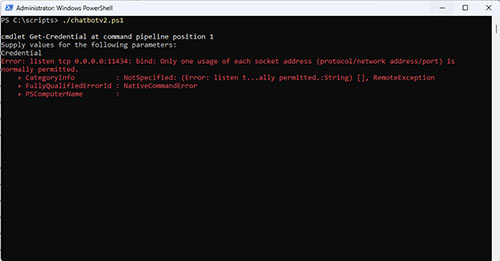
Finally, if you run the script and Ollama is already running on the remote machine, then the ollama serve command will produce an error. This is totally harmless and the error is both normal and expected. I simply could not find a good way to suppress the error. You can see what the ollama serve error looks like in Figure 1.
 [Click on image for larger view.]
Figure 1. The PowerShell session will display an error if Ollama is already running.
[Click on image for larger view.]
Figure 1. The PowerShell session will display an error if Ollama is already running.
Once the script has verified that Ollama is running, the next step is to acquire a list of the Large Language Models that have been downloaded to the Ollama server. I acquired the list by using this command:
$UneditedModelList = Invoke-Command -ComputerName $RemoteMachine -Credential $Cred -ScriptBlock {powershell.exe -command "Ollama list"} | Select-String "^\S+" | ForEach-Object { ($_ -split '\s+')[0] }
This command sends the ollama list command (which is also case sensitive) to the Ollama server. The Ollama server returns a list of the available models, but this list also contains a bunch of extra information. The Select-String cmdlet and the ForEach-Object cmdlet are being used to extract the model names from the full output.
The problem with extracting the model names in this way is that the first item on the list of models ends up being the word Name, which obviously is not the name of a model. As such, I ended up using a For loop to go through the list of models (skipping the word Name) and write those model names to an array called $ModelList. Later on in the script, I use this variable to populate the Models drop down list. Here is that code:
# Create Model Combo Box

  $ModelComboBox = New-Object System.Windows.Forms.ComboBox

  $ModelComboBox.Location = New-Object  System.Drawing.Point(10,55)

  $ModelComboBox.Size = New-Object  System.Drawing.Size(250,150)

  $ModelComboBox.Font = New-Object  System.Drawing.Font("Arial", 14)   # Default font

  $ModelComboBox.text = ""
# Define the array of choices and add them to the drop  down
$ModelList | ForEach-Object {[void]  $ModelComboBox.Items.Add($_)}
# Select the default choice

  $ModelComboBox.SelectedIndex = 0
As you can see, I am creating the drop down list, which is technically referred to as a combo box, and setting various attributes. Once I have defined the combo box, I reference the $ModelList variable and then use a ForEach-Object loop to add the individual model names to the combo box so that the user is able to select the model that they want to use.
Now that I have shown you how the script's connectivity works and how I am downloading the list of models from the Ollama server, I want to show you how the query process works. I will explain the query process and provide you with the script's full code in Part 3.
About the Author
Brien Posey is a 22-time Microsoft MVP with decades of IT experience. As a freelance writer, Posey has written thousands of articles and contributed to several dozen books on a wide variety of IT topics. Prior to going freelance, Posey was a CIO for a national chain of hospitals and health care facilities. He has also served as a network administrator for some of the country's largest insurance companies and for the Department of Defense at Fort Knox. In addition to his continued work in IT, Posey has spent the last several years actively training as a commercial scientist-astronaut candidate in preparation to fly on a mission to study polar mesospheric clouds from space. You can follow his spaceflight training on his Web site.