Posey's Tips & Tricks
Coping With the Microsoft 365 Update Process
Forced Microsoft 365 restarts can keep Office apps current, but they can also disrupt work and put unsaved data at risk.
Recently, the Microsoft 365 update process has been causing me a lot of problems. For those who might not be familiar with this process, Microsoft routinely applies updates to the Office applications. Many of these updates require the applications to be restarted.
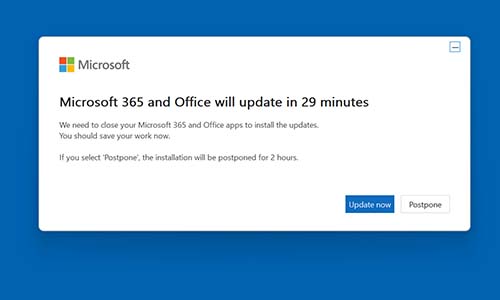
The process begins with Office displaying a large pop-up message like the one that is shown in Figure 1. As you can see in the figure, Microsoft is indicating that Office will update in 29 minutes. You can opt to update immediately, or you can postpone the update for two hours.
 [Click on image for larger view.]
Figure 1. Microsoft indicates that Office needs to be restarted in order to complete the update process.
[Click on image for larger view.]
Figure 1. Microsoft indicates that Office needs to be restarted in order to complete the update process.
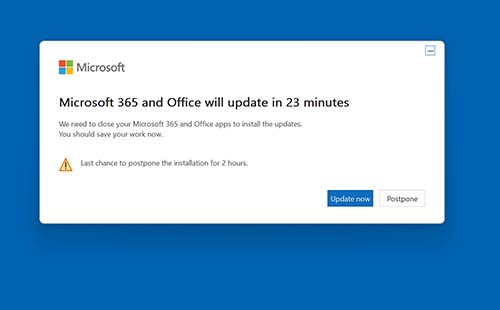
If you opt to postpone the update process, the message will reappear in about an hour and a half, indicating that Office will be restarted in half an hour. You can postpone the process again, but there is a limit to the number of times that you can postpone the restart. As you can see in Figure 1Microsoft indicates that Office needs to be restarted in order to complete the update process.
 [Click on image for larger view.]
Figure 2. Microsoft warned me that this was my last chance to postpone the update process.
[Click on image for larger view.]
Figure 2. Microsoft warned me that this was my last chance to postpone the update process.
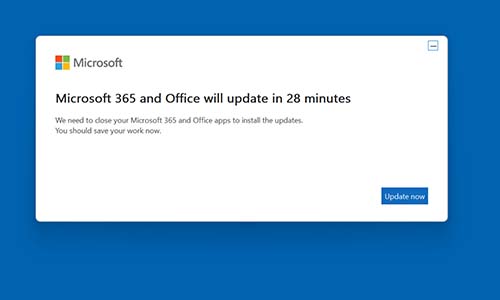
Once you postpone the update for the last time allowed, the message will come back and tell you that Office will be restarted in half an hour. As you can see in Figure 3, you can opt for an immediate update, but there is no option to cancel, schedule, or postpone the update. It is as though Microsoft is saying, "we're restarting Office in half an hour whether you like it or not."
 [Click on image for larger view.]
Figure 3. There is no longer an option to postpone the update.
[Click on image for larger view.]
Figure 3. There is no longer an option to postpone the update.
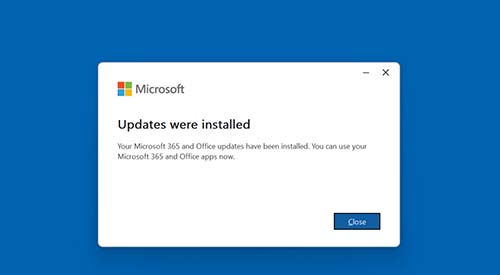
When the timer expires, all of the Office applications are closed, updated, and hopefully reopened. At that point, Microsoft displays a message telling you that updates were installed. You can see what this message looks like in Figure 4.
 [Click on image for larger view.]
Figure 4. The Office updates have been installed.
[Click on image for larger view.]
Figure 4. The Office updates have been installed.
OK, so why did I initially say that the update process is problematic? Well, it stems from the fact that when the first message pops up, it means that Office will be closed and updates will be installed in half an hour unless you postpone the operation. Inevitably, this message always seems to appear when I am away from my desk. Yes, I know, you're supposed to sign out when you walk away from your desk. However, I work from my home. If I can't leave my computer signed in when I am away from my desk, then it means that my home has been compromised and that I have bigger problems than just someone potentially messing with my computer.
But the question still remains... What's the big deal about having Office restart when I am away from my computer? Twice in the last month, I have lost data as a result of an unwanted Office update. In both cases, I had not saved the data that was most recently added to an Excel spreadsheet. Auto Save did not work the way that it was supposed to and I ended up losing data.
Needless to say, my next move was to check to see if there was a way to schedule Office updates to occur on a more predictable basis or if there was a way to eliminate the forced restarts. Unfortunately, there is no way that I know of to schedule the update process. You basically have to choose between automatic updates and manual updates.
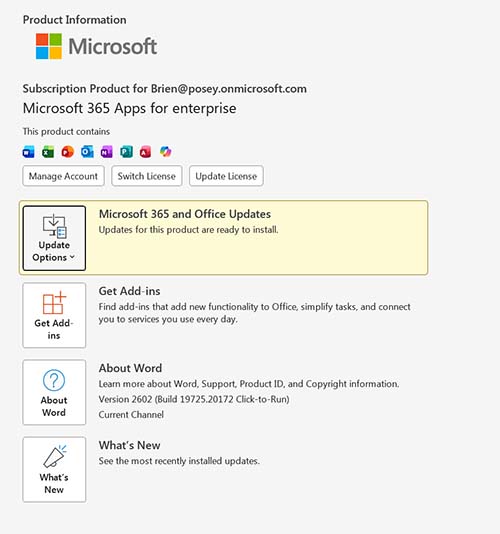
If you want to switch to manual updates, then the easiest way to do so is to open an Office application and then choose the Account option from the File menu. Next, click on Update Options and then select Disable Updates. Keep in mind though, that because you are disabling automatic updates you will have to update Office manually by going to File > Account and then clicking Update Now. You can see the update options in Figure 5.
 [Click on image for larger view.]
Figure 5. You can use the Update Options to disable updates or to apply updates immediately.
[Click on image for larger view.]
Figure 5. You can use the Update Options to disable updates or to apply updates immediately.
About the Author
Brien Posey is a 22-time Microsoft MVP with decades of IT experience. As a freelance writer, Posey has written thousands of articles and contributed to several dozen books on a wide variety of IT topics. Prior to going freelance, Posey was a CIO for a national chain of hospitals and health care facilities. He has also served as a network administrator for some of the country's largest insurance companies and for the Department of Defense at Fort Knox. In addition to his continued work in IT, Posey has spent the last several years actively training as a commercial scientist-astronaut candidate in preparation to fly on a mission to study polar mesospheric clouds from space. You can follow his spaceflight training on his Web site.