Posey's Tips & Tricks
Do-It-Yourself AI -- How Did it Work Out?
A yearlong PowerShell experiment to bring AI in-house evolved from a simple proof of concept into a production-ready, stateful chatbot that now largely replaces the author's reliance on cloud-based AI services.
Last year, I published a rather lengthy series of blog posts explaining how to use PowerShell to build your own AI chatbot. Like many of the other blog posts that I write, this one started out as a simple proof of concept project. I wanted to know if it was even possible to bring AI inhouse as opposed to relying on ChatGPT or something similar.
As time went on, this project evolved and I began to come up with ways of enhancing my code and turning my proof of concept into a full featured application suitable for everyday use.
Initially, I created a 2.0 version of my script and wrote about it in a series of blog posts. Shortly thereafter, I built a high-end PC equipped with a server-grade GPU. My intent had been to dedicate that PC to the task of hosting an in-house chatbot. However, it did not take me long to realize that in spite of my best efforts, my PowerShell script was never going to be able to take the place of ChatGPT. As such, my purpose-built PC went unused for several months.
After my project's initial failure, I assumed that I would eventually find another use for the PC that I had built and then move on to doing something else. However, there was something in the back of my mind that just would not let the AI project go. Even though things hadn't worked out quite the way that I wanted them to, it was impossible to ignore the very real benefits of running AI in house. Running my own AI chatbot would of course, mean that I would not have to worry about ChatGPT usage limits, performance issues during peak hours, and potential outages.
Perhaps more importantly, hosting your own chatbot gives you privacy. A few years ago, I did an experiment in which I wanted to determine what ChatGPT could figure out about me based on my interactions with it. Over the course of that experiment, it became clear that ChatGPT stores a record of interactions and that the chatbot is smart enough to infer quite a bit of information based on subtle clues that it picks up on during day-to-day interactions. Hosting my own chatbot in-house would be an opportunity to reclaim a bit of privacy since prompts are handled locally without sending anything to the cloud.
The real question, of course, was what changes I would need to make in order to make the chatbot suitable for day-to-day use. Initially, I felt like I had a grasp on what I needed to do differently, but ultimately, it wasn't until I got to Version 5 of my script that I began to feel as though I had really gotten it right. Version 5 is so good in fact, that I use it almost exclusively and only rarely find myself using ChatGPT.
Unfortunately, the code used to create my latest chatbot is way too long and complex to discuss within the confines of a blog post. Even so, I do want to take the opportunity to talk about the modifications that I made to my original script in case there is anyone who can benefit from my experiences.
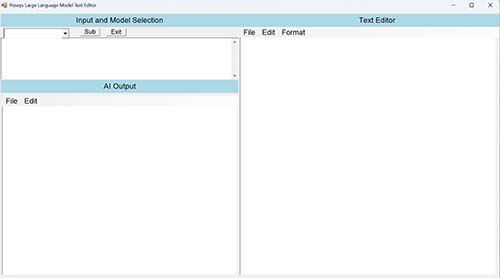
The most basic change that I made was to redesign the chat interface. My original idea was to design the interface with a chat window and a notes window. The idea was that you could copy and paste elements from the chat into the notes window and save it as a document for future use.
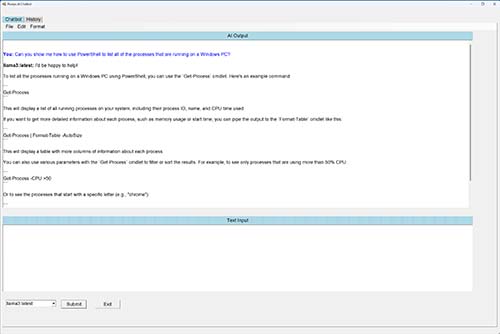
My new design still allows you to create and save notes, but I modified the interface to include a small (but much wider) text entry field at the bottom of the screen and an output window that takes up most of the screen. This change made it a lot easier to read the output and I designed the interface so that you can edit the output directly (rather than having to use copy and paste) and save it to a document. As a comparison, you can see my original version in Figure 1, compared to Version 5 in Figure 2.
 [Click on image for larger view.]
Figure 1. This is what my chatbot originally looked like.
[Click on image for larger view.]
Figure 1. This is what my chatbot originally looked like.
 [Click on image for larger view.]
Figure 2. This is the newly designed chatbot interface.
[Click on image for larger view.]
Figure 2. This is the newly designed chatbot interface.
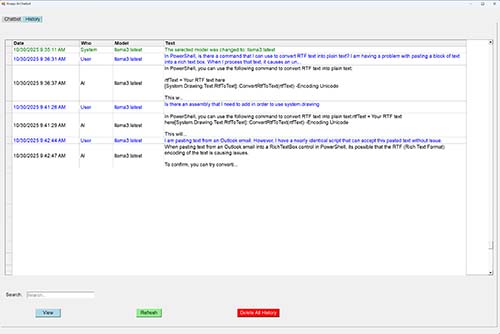
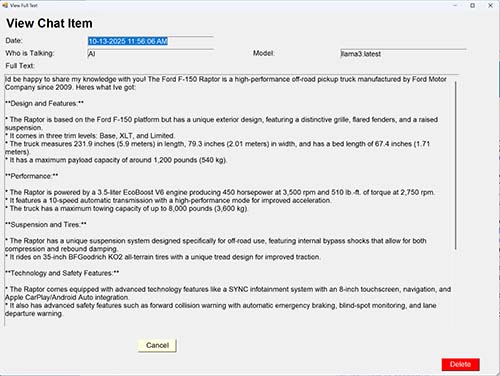
Another major change that I made was to create a History tab, which you can see at the top of the previous figure. Simply put, all prompts and responses are logged to a SQL Server database. That way, I can refer back to a previous conversation if necessary. I also built a search engine that can locate previous conversation items based on keywords. You can see the History tab and the search interface, shown in Figure 3. Double clicking on any of the prompts reveals the complete text, as shown in Figure 4.
 [Click on image for larger view.]
Figure 3. All of my chat history is being logged to a SQL Server.
[Click on image for larger view.]
Figure 3. All of my chat history is being logged to a SQL Server.
 [Click on image for larger view.]
Figure 4. Double clicking on a history item reveals the full text.
[Click on image for larger view.]
Figure 4. Double clicking on a history item reveals the full text.
The biggest change that I made to my original AI chatbot was to make it stateful. I didn't realize it at the time when I created my original script, but the Ollama engine that I use to power AI interactions is stateless, meaning that if you tell it something, it will respond and then immediately forget what you have told it. Actually, it was a little bit worse than that, because asking about past interactions would often trigger hallucinations. As an example, I once told the chatbot that I had purchased a new vehicle. I then asked the chatbot what purchase I had recently made, only to have the chatbot congratulate me on buying a new pair of shoes.
My original chatbot was fine for getting quick answers, but you just couldn't use it for ChatGPT style conversations. Thanks to some very tricky scripting however, my chatbot is now stateful and you can even switch models midstream without breaking the conversation. It was this ability to handle stateful conversation that really led to my script becoming excessively lengthy and complex (although, the database stuff also added to the script's complexity).
As I mentioned at the beginning of this blog post, I started out by creating a proof-of-concept chatbot, but I was always curious as to whether a PowerShell chatbot app could ever be good enough for day to day use. I am happy to say that my current version of the chatbot has exceeded all of my expectations.
About the Author
Brien Posey is a 22-time Microsoft MVP with decades of IT experience. As a freelance writer, Posey has written thousands of articles and contributed to several dozen books on a wide variety of IT topics. Prior to going freelance, Posey was a CIO for a national chain of hospitals and health care facilities. He has also served as a network administrator for some of the country's largest insurance companies and for the Department of Defense at Fort Knox. In addition to his continued work in IT, Posey has spent the last several years actively training as a commercial scientist-astronaut candidate in preparation to fly on a mission to study polar mesospheric clouds from space. You can follow his spaceflight training on his Web site.