Posey's Tips & Tricks
Improving Copilot Searches with Acronyms and Bookmarks, Part 1
A well-defined set of acronyms and bookmarks can help Copilot Search deliver more accurate, organization-specific results for users.
Copilot Search can be a very useful tool for helping your users to locate specific information from within your organization's data. Like any search engine however, the results might not always be exactly what the user was looking for. Fortunately, you can improve the user's chances of finding the information that they are looking for by providing Copilot with a list of acronyms and bookmarks.
Let's start by talking about acronyms. Based on my own experience, it seems that almost every organization uses acronyms, or at least some terms or phrases that are uniquely its own. In my own career, the military and the space program both used enough acronyms to make your head spin. The insurance companies that I once worked for didn't really use all that many acronyms, but they definitely had a lingo that was all their own. Some of the phrases that I heard used on a daily basis would have undoubtedly confused anyone who didn't work for the company.
The problem with industry specific acronyms or with an organization having its own form of "corporate speak" is that some of those phrases or acronyms are bound to make it into the organization's data. It isn't so much of the existence of such phrases or acronyms that causes issues, as their inconsistent use. Let me give you an example.
When I worked for the military, I sometimes had to travel. The Army referred to these travels as TDY, or temporary duty assignments. As an example of how this acronym was used, I might have told a coworker, "I'm not going to be here next week, because I am TDY."
So with that in mind, imagine that someone who is new to the military needs to look up the rules pertaining to a temporary duty assignment. If they simply enter TDY into Copilot Search, they might not get any results or they might receive a few irrelevant results posted by others, referring to past temporary duty assignments. Similarly, if a user were to search for the phrase "Temporary Duty Assignment," they might find what they are looking for, but some search results could be omitted because they contain the acronym TDY instead of the words Temporary Duty Assignment.
Interestingly, Microsoft 365 allows you to build your own acronym dictionary as a way of keeping that sort of thing from happening. With such a dictionary in place, a user will be better able to locate whatever it is that they are looking for, in spite of any acronym usage. Better still, Microsoft offers various connectors that tie Microsoft 365 Copilot Search to other data sources. As such, a user could conceivably search across all data sources (assuming that they have access to those sources) and receive relevant results because Copilot Search has become acronym aware.
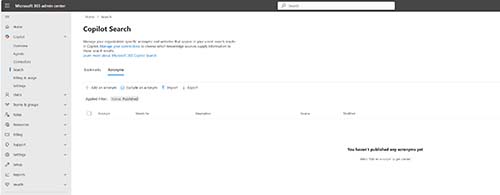
Microsoft makes it really easy to add acronyms to Microsoft 365 Copilot Search. To do so, log into Microsoft 365, expand the Copilot tab, and then select the Search tab. Now, select the Acronyms tab, found at the top of the page. You can see what this tab looks like in Figure 1.
 [Click on image for larger view.]
Figure 1. This is the screen used to add acronyms to Copilot Search.
[Click on image for larger view.]
Figure 1. This is the screen used to add acronyms to Copilot Search.
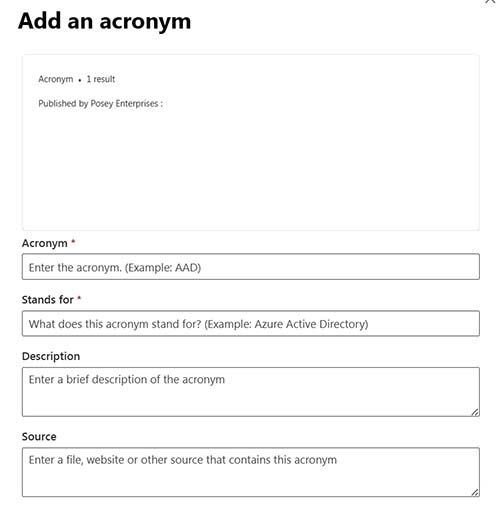
The easiest way to add an acronym is to simply click on the Add an Acronym link, shown in the Figure above. When you do, you will be taken to the screen shown in Figure 2, which asks you to provide information about the acronym that you are adding.
 [Click on image for larger view.]
Figure 2. This is the interface used to add an acronym.
[Click on image for larger view.]
Figure 2. This is the interface used to add an acronym.
As you can see in the figure, there are four fields, but only two of them are mandatory. The mandatory fields require you to enter the acronym and what the acronym stands for. There is also a description field that you can use to enter a detailed description of the acronym. This can be helpful in situations where the acronyms meaning might not be fully conveyed by the Stands For field. Finally, the Source field lets you enter a URL or a file path pointing to an authoritative source for the acronym's definition.
Going back to my earlier example, I might enter TDY as the acronym, and Temporary Duty Assignment as what the acronym stands for. From there, I might enter a description such as, "A temporary duty assignment is a short term assignment that involves traveling to a location that is different from the person's normal assigned duty station. Finally, I might point the source to a Department of Defense regulation page describing temporary duty assignments.
It's worth noting that while the method that I have described is arguably the easiest option for building an acronym dictionary, Microsoft does give you the option of importing a CSV file containing a list of acronyms.
So now that I have talked about how to make Copilot Search acronym aware, I want to turn my attention to bookmarks in Part 2.
About the Author
Brien Posey is a 22-time Microsoft MVP with decades of IT experience. As a freelance writer, Posey has written thousands of articles and contributed to several dozen books on a wide variety of IT topics. Prior to going freelance, Posey was a CIO for a national chain of hospitals and health care facilities. He has also served as a network administrator for some of the country's largest insurance companies and for the Department of Defense at Fort Knox. In addition to his continued work in IT, Posey has spent the last several years actively training as a commercial scientist-astronaut candidate in preparation to fly on a mission to study polar mesospheric clouds from space. You can follow his spaceflight training on his Web site.