Posey's Tips & Tricks
Exploring a Free Tool To Improve Windows Privacy
A lightweight free utility gives Windows users an easy way to review and control system-level privacy settings without digging into the registry.
Recently, I stumbled onto a free utility called O&O ShutUp 10++ that is designed to give you control over data collection in Windows 10, Windows 11 and even Microsoft Office. Needless to say, I was intrigued and decided to give it a try.
In doing so, the first thing that I discovered was that getting the program up and running couldn't be easier. O&O ShutUp 10++ is portable, meaning that all you have to do is download the executable and run it. There is no installer that you have to run or zip file that you have to open.
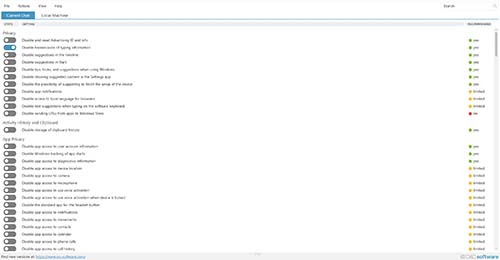
As you can see in Figure 1, O&O ShutUp 10++ is a fairly simplistic tool. In fact, it seems as though it is probably just a GUI front end that you can use to toggle various privacy related registry settings. Incidentally, in the screen capture, the tool is configured to use a non-default color scheme. You can change the tool's appearance through the View menu.
 [Click on image for larger view.]
Figure 1. O&O ShutUp 10++ appears to act as a front end to the Windows registry.
[Click on image for larger view.]
Figure 1. O&O ShutUp 10++ appears to act as a front end to the Windows registry.
One of the longstanding best practices for Windows is that you should make a backup of your system prior to making any registry modifications. This best practice stems from the fact that modifying the registry can be dangerous. If you make a mistake while modifying the registry, you can potentially destroy Windows and / or your applications or data.
Being that O&O ShutUp 10++ does not require you to make configuration changes manually, I am assuming that the tool is probably safe. Even so, I would still recommend that you back up your system before using the tool. After all, it's impossible to be 100 percent certain that none of the privacy controls will introduce unwanted side effects.
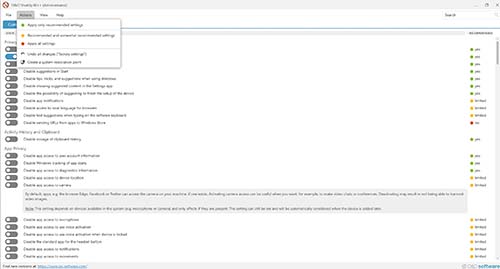
While I am on the subject of backups, it's worth mentioning that the program's Actions menu contains an option to create a system restore point. As such, you might consider creating a restore point just prior to trying out any of the program's settings. The Actions menu also has an option to undo all changes and to restore the machine to its factory settings.
 [Click on image for larger view.]
Figure 2. The program contains a menu option that will allow you to create a restore point.
[Click on image for larger view.]
Figure 2. The program contains a menu option that will allow you to create a restore point.
As previously noted, using O&O ShutUp 10++ couldn't be easier. If you look at the top of Figure 1, you will notice that the interface is split into two tabs: Current User and Local Machine. Changes that you make through the Current User tab apply to the user who is currently logged in, while changes made through the Local Machine tab are system wide and will be in effect for anyone who logs into the machine.
The individual settings are controlled through a series of toggle switches. These switches are grouped into various categories. The screen capture shows the Privacy, Activity History and Clipboard, and App Privacy categories, but there are many additional categories that are revealed when you scroll down. All you have to do is to review the privacy settings found in each section and then turn on the settings that you want to use.
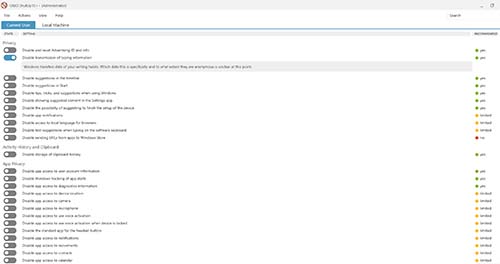
Most of the settings are pretty straightforward, but if you want to know more about what a particular setting does, you can click on the name of the setting and a description will be displayed beneath the setting, as shown in Figure 3.
 [Click on image for larger view.]
Figure 3. Clicking on a setting's name reveals a description of what the setting does.
[Click on image for larger view.]
Figure 3. Clicking on a setting's name reveals a description of what the setting does.
If you aren't quite sure which of the privacy settings you should be using, then the creators of the program have made some recommendations. If you look to the far right side of the screen captures, you can see that there is a Recommended column. This column indicates whether or not the creators of the software recommend that you turn on the various settings.
I would personally recommend that you take the time to review all of the available settings and only enable those that align with your needs. However, if you are looking for a shortcut, then take another look at the Actions menu, shown in Figure 2. This menu contains shortcuts that you can use to apply all of the recommended settings, recommended and somewhat recommended settings, or all settings (whether they are recommended or not).
About the Author
Brien Posey is a 22-time Microsoft MVP with decades of IT experience. As a freelance writer, Posey has written thousands of articles and contributed to several dozen books on a wide variety of IT topics. Prior to going freelance, Posey was a CIO for a national chain of hospitals and health care facilities. He has also served as a network administrator for some of the country's largest insurance companies and for the Department of Defense at Fort Knox. In addition to his continued work in IT, Posey has spent the last several years actively training as a commercial scientist-astronaut candidate in preparation to fly on a mission to study polar mesospheric clouds from space. You can follow his spaceflight training on his Web site.