Posey's Tips & Tricks
Taking a Look at Microsoft Word's Advanced Find Capabilities
Microsoft Word's advanced Find and Replace feature offers powerful tools that can simplify complex data cleanup and text searches beyond basic keyword matching.
Recently, I have been hard at work migrating data from an old application to a new custom-built application that I have been building. Even though it was easy to export the data, I found that I had to do quite a bit of cleanup work before I could bring the data into my new application. This cleanup work involved removing special characters, getting rid of unwanted line breaks, and making a few other modifications.
My solution to fixing the data was to write a custom PowerShell script that went through the data record by record, making all of the necessary changes. As you can imagine, writing and debugging this script took me some time. While I don't mind doing a bit of hard work, the scripting process involved a lot more effort than I would have liked, considering that the script was something that I was only going to be using once.
Later on I began to wonder if there might have been an easier way to transform my data file. Since I knew exactly what modifications needed to be made, I thought that perhaps I could have performed a simple search and replace within Notepad. As I thought about it though, search and replace would not have gotten the job done, at least not by itself. As an example, I found myself having to trim the whitespace that appeared before some of the records in my datafile. PowerShell can easily handle such tasks, but it would have been difficult to use search and replace because the search process would have picked up on white space that was supposed to exist in the file (such as the space between two words). Similarly, some records contained an extra space just before the record, but other records included dozens of extra spaces. It would have been tough to search for all whitespace possibilities without affecting the whitespace that was supposed to exist.
A few days later, I was working on an unrelated project and discovered that Microsoft Word includes an advanced find and replace feature that probably would have worked for my data transformation project. Additionally, the advanced find and replace capabilities can help you to locate content within a document in ways that I never would have expected.
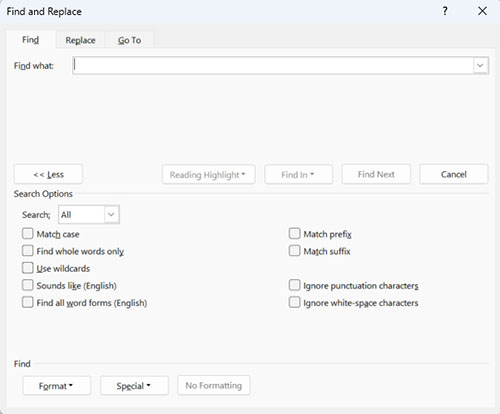
You can access Word's advanced find and replace feature by going to the Home tab and then clicking the down arrow next to Find. This opens a drop-down menu containing a few different choices. Select the Advanced Find option. You can see the advanced Find and Replace dialog box, shown in Figure 1.
 [Click on image for larger view.]
Figure 1. This is what the advanced Find and Replace dialog box looks like.
[Click on image for larger view.]
Figure 1. This is what the advanced Find and Replace dialog box looks like.
As you can see in the figure, this dialog box contains quite a few options, and there are even more options which are initially hidden from view. I'm not going to go through every single option, but I do want to point out a few of the more unique options.
If you are having difficulty locating a block of text using the basic Find feature, then the advanced find certainly offers some capabilities that can make the search easier. For example, you can search for various forms of a word, you can choose to ignore white space, ignore punctuation, search for a whole word only, or even perform a case sensitive search. These features are great, but the one feature that really stood out to me on this screen is the Sounds Like option.
The Sounds Like option helps you to find a word or phrase by entering something else that it kind of sounds like. This might be a different word or perhaps even a phonetic spelling. I love this feature, because even after more than 30 years of being a professional author, I am still a terrible speller. I love the idea of being able to search for something that I can't spell correctly.
Another thing that I wanted to point out is the Format button at the bottom of the screen. Clicking on the Format button causes the dialog box to display a menu containing options such as Font, Paragraph, Tabs, and more. Choosing the Font option causes Word to reveal what, at first glance, looks like a fairly typical Font selection dialog box. The difference however, is that this dialog box doesn't allow you to change the font. Instead, it helps you to find instances of the selected font within your document. This can be super helpful if you need to clean up a document containing text from multiple sources.
Finally, the advanced Find and Replace dialog box contains a Special button, which you can click if you want to search for, remove, or replace special characters or formatting codes. You could use this option to search for things like tabs, escape characters, line breaks, page breaks and more.
About the Author
Brien Posey is a 22-time Microsoft MVP with decades of IT experience. As a freelance writer, Posey has written thousands of articles and contributed to several dozen books on a wide variety of IT topics. Prior to going freelance, Posey was a CIO for a national chain of hospitals and health care facilities. He has also served as a network administrator for some of the country's largest insurance companies and for the Department of Defense at Fort Knox. In addition to his continued work in IT, Posey has spent the last several years actively training as a commercial scientist-astronaut candidate in preparation to fly on a mission to study polar mesospheric clouds from space. You can follow his spaceflight training on his Web site.