Posey's Tips & Tricks
Is HyperV a Viable Option for Working on the Road
Hyper-V has come a long way since 2012, and as one IT pro recently found out, it’s now a surprisingly capable solution for running a lab environment on the go -- assuming your hardware can keep up.
Hyper-V has come a long way since 2012, and as one IT pro recently found out, it’s now a surprisingly capable solution for running a lab environment on the go -- assuming your hardware can keep up.
By: Brien M. Posey
Way back in 2012, one of the publishers that I write for asked me to do a years' long international speaking tour. As exciting as the opportunity might have been, I knew that it was going to be tough to get all of my normal work done while on the road. The biggest obstacle was going to be the fact that I wouldn't have access to my lab environment while traveling. I use that lab environment to test the various concepts that I write about.
My solution at the time was to purchase a high-end gaming laptop. I ended up installing Windows Server as the laptop's primary operating system and then set up a bunch of Hyper-V virtual machines running various operating systems and configurations. It wasn't a perfect mirror of my home lab environment, but I hoped that it would be good enough to allow me to work while on the road.
Ultimately, my setup did get the job done, but just barely. The end user experience was terrible.
The main problem that I had with the setup was that powering up even a single virtual machine caused everything to run extremely slowly. I wasted a lot of time just waiting for things to load.
Keep in mind that I had bought the absolute fastest laptop that was available at the time. It had plenty of memory for what I was doing and it had two physical hard disks. I had assumed that by installing my virtual machines on a separate disk from my main operating system, the system would perform well, but that simply did not end up being the case.
The other problem that I had with the setup was that even though the laptop had a high-resolution display, a virtual machine window consumed most of the space on the screen. That probably doesn't sound like a big deal, but when I am working at home I am in the habit of viewing virtual machines on one monitor and having Microsoft Word open on another monitor. That way, I can see whatever it is that I am writing about. My setup that I used while on the road forced me to constantly flip back and forth between Word and my virtual machines. Like I said, my setup got the job done, but using it was inefficient to say the least.
But now here we are 13 years later, and I have unexpectedly found myself in a similar situation, though I have not signed on to do a speaking tour. A couple of days ago, I drove to another city that's about 500 miles from home so that I could attend a funeral. I only expected to be away from home for a couple of days. As luck would have it though, my vehicle broke down two days into the trip. That meant having to extend my stay for several days while my vehicle was being repaired. It also meant that I am was going to have to get some work done while I was stranded in order to meet some upcoming deadlines.
This time around, I didn't have a high-end gaming laptop at my disposal. Instead, I was working from a Microsoft Surface Laptop 6.
Of course the easy solution to my problem would have been to just deploy a few virtual machines in the cloud rather than trying to set up the virtual machines locally on my laptop. Unfortunately though, I use an authentication token to protect my cloud accounts and I didn't have that token with me. Hence, setting up virtual machines to run on my laptop ended up being the only realistic option. Fortunately, my laptop has 64 GB of RAM and I have about 800 GB of free disk space. Better still, Microsoft makes it easy to download ISO files for Windows Server, Windows 11 and other products.
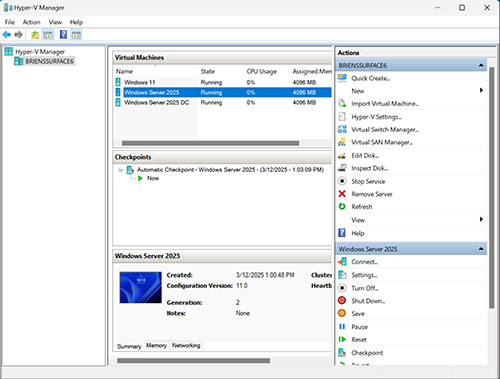
As you can see in Figure 1, I ended up creating two Windows Server virtual machines and a Windows 11 virtual machine. It took quite a while to download the ISO files over the hotel's painfully slow Wi-Fi, but the virtual machines worked great!
 [Click on image for larger view.]
Figure 1. I have three virtual machines running on my laptop
[Click on image for larger view.]
Figure 1. I have three virtual machines running on my laptop
I suspected that the experience of working from my laptop would probably be better this time around than it was back in 2012. After all, desktop Hyper-V didn't exist back then. The simple fact that Microsoft includes Hyper-V with Windows 11 Pro is a good indication that Hyper-V has matured to the point that using it to run virtual machines on a user workstation is a viable option. Never mind the fact that today's hardware is far superior to what I was using back in the day. Ultimately, I found that I was able to complete my work without any issues, in spite of not being connected to my home lab.
About the Author
Brien Posey is a 22-time Microsoft MVP with decades of IT experience. As a freelance writer, Posey has written thousands of articles and contributed to several dozen books on a wide variety of IT topics. Prior to going freelance, Posey was a CIO for a national chain of hospitals and health care facilities. He has also served as a network administrator for some of the country's largest insurance companies and for the Department of Defense at Fort Knox. In addition to his continued work in IT, Posey has spent the last several years actively training as a commercial scientist-astronaut candidate in preparation to fly on a mission to study polar mesospheric clouds from space. You can follow his spaceflight training on his Web site.