Posey's Tips & Tricks
Easy Ransomware Protection for Data Stored Locally, Part 2: Enabling Defense
Enable and configure Windows 11's Controlled Folder Access to add a layer of protection against ransomware targeting locally stored data.
In the first part of this series, I talked about how the Windows 11 Controlled Folder Access feature could help to protect you against losing data stored locally on your machine in the event of a ransomware infection. Now, I want to show you how to enable and configure this feature, and of course I will be sure to share a few best practices with you along the way.
The first of these best practices is to use Controlled Folder Access to augment, not replace, your existing ransomware strategy. It's still important to use antimalware software and AppLocker can provide additional protection. Controlled Folder Access is essentially a safety net that can help to minimize the damage in the event that ransomware slips through any of your existing defenses.
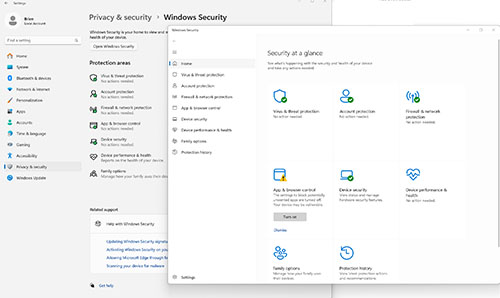
To enable Controlled Folder Access, open Settings and then click on Privacy and Security, followed by Windows Security. Now, click on the Open Windows Security button, followed by Virus and Threat Protection. You can see what these options look like in Figure 1.
 [Click on image for larger view.]
Figure 1. Click on Open Windows Security, followed by Virus and Threat Protection.
[Click on image for larger view.]
Figure 1. Click on Open Windows Security, followed by Virus and Threat Protection.
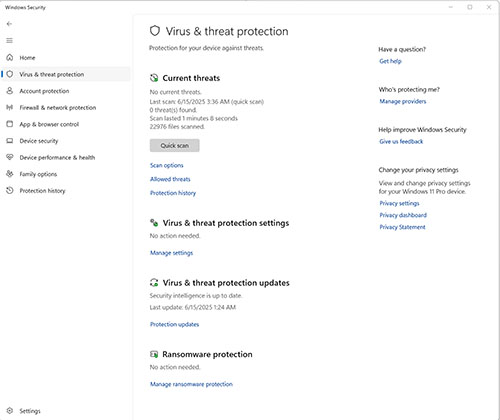
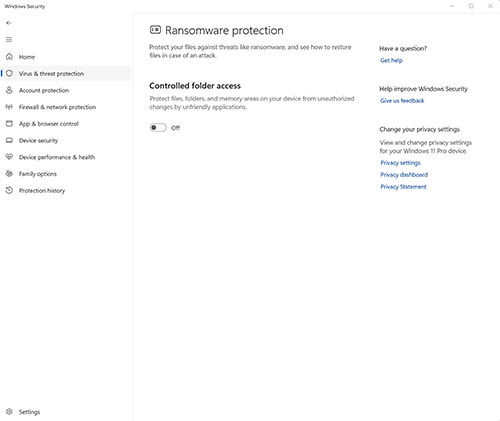
At this point, you should see the Virus and Threat Protection screen, shown in Figure 2. Go to the bottom of the screen and click on the Manage Ransomware Protection link. Finally, go ahead and enable Controlled Folder Access, as shown in Figure 3.
 [Click on image for larger view.]
Figure 2. Click on the Manage Ransomware Protection link, found at the bottom of the screen.
[Click on image for larger view.]
Figure 2. Click on the Manage Ransomware Protection link, found at the bottom of the screen.
 [Click on image for larger view.]
Figure 3. This is the switch used to enable Controlled Folder Access.
[Click on image for larger view.]
Figure 3. This is the switch used to enable Controlled Folder Access.
If the screen shown in the figure above seems to be a bit sparse, it's because the Controlled Folder Access feature is designed to protect your data without you even having to do anything beyond just enabling the feature! This isn't to say that you can't or shouldn't customize the Controlled Folder Access feature's configuration. It's just that the default configuration provides a level of protection that will be sufficient for a lot of people.
This, of course, raises the question of what the Controlled Folder Access feature is actually protecting. By default, Controlled Folder Access protects your system's library folders. Specifically, this includes Documents, Pictures, Videos, Music and Favorites. It's worth noting that both the personal and public libraries are protected. As an example, enabling Controlled Folder Access on my system caused protection to be applied to C:\Users\Public\Documents and to C:\Users\Brien\Documents (public library folders are also protected for Pictures, Videos and Music).
In my previous article, I explained that when you use the Controlled Folder Access feature to protect a folder, Windows will only allow items within the specified folder to be modified using an approved application. In the case of the Documents folder for example, this could mean that applications such as Microsoft Word or Notepad can modify the Document folder's contents, but that malware cannot. Similarly, you wouldn't be able to modify any data within the Documents folder using a sketchy utility that was downloaded from the Internet.
Interestingly, Microsoft has already configured Windows to allow access to the protected folders using any application that Microsoft deems to be safe. Presumably, this means that applications such as Word and Notepad have already been whitelisted. You can, however, add additional applications to the whitelist. All you have to do is to click the Allow an App Through Controlled Folder Access link and then click Add an Allowed App. From there, you need only to select the application that you want to allow.
Adding an additional folder to the list of protected folders is an equally simple process. Just click Protected Folders, followed by Add a Protected Folder, and then specify the folder that you want to add.
Overall, the Controlled Folder Access feature seems to work really well. Even so, there are a few best practices to keep in mind. First, even though you can add a network location to the list of protected folders, doing so will only stop rogue applications on your machine from modifying the folder's contents. There is nothing protecting the network folder from being modified from a different machine.
Another thing to keep in mind is that it's a good idea to periodically review the bock history, which you can access by clicking the block history link. That way, you can be informed of any unauthorized applications that attempt to modify data within protected folders.
Finally, it's important to note that the Controlled Folder Access feature does nothing to protect you against a compromised application. As an example, Microsoft Word is considered to be a safe application. As such, a Word document containing a macro virus could conceivably launch a successful attack against a protected folder because Controlled Folder Access considers Microsoft Word to be safe and knows nothing about the macro virus that is being launched through Word.
About the Author
Brien Posey is a 22-time Microsoft MVP with decades of IT experience. As a freelance writer, Posey has written thousands of articles and contributed to several dozen books on a wide variety of IT topics. Prior to going freelance, Posey was a CIO for a national chain of hospitals and health care facilities. He has also served as a network administrator for some of the country's largest insurance companies and for the Department of Defense at Fort Knox. In addition to his continued work in IT, Posey has spent the last several years actively training as a commercial scientist-astronaut candidate in preparation to fly on a mission to study polar mesospheric clouds from space. You can follow his spaceflight training on his Web site.