Posey's Tips & Tricks
How To Deal With a Windows 11 Disk Warning Icon
A few days ago, I was preparing my laptop for some upcoming travels. I normally only use that particular machine when I am on the road, so it had been a few weeks since it had been used. Even so, it was working perfectly the last time that I used it, so I had no reason to suspect that it might be having issues. However, as I prepared to copy some Word documents to the laptop's hard disk, I saw that File Explorer was displaying the warning icon shown in Figure 1.
 [Click on image for larger view.] Figure 1. Windows 11 displayed a warning icon for my laptop's hard disk.
To be totally honest with you, I had never seen this particular warning before, but I assumed that it meant that the machine's hard disk was failing. However, a quick check online revealed that the most common reason why Windows displays this particular warning is because the hard disk is running low on space. As you can see in the figure though, my machine has plenty of storage space available.
As I reviewed a few more support forums, I found several instances of people stating that the warning could be the result of file system corruption or damaged system files. As such, I set out to locate and repair any damage that might exist.
The first thing that I did in an effort to resolve the apparent problem was to right click on the C: disk and select the Properties command from the shortcut menu. This causes Windows to display the disk's properties sheet. From there, I selected the Tools tab and clicked the Check button. As you can see in Figure 2, clicking this button causes Windows to check the disk for system errors.
 [Click on image for larger view.] Figure 2. You can check a disk for errors by opening the disk's properties sheet, selecting the Tools tab, and clicking the Check button.
Interestingly, Windows displayed the message, shown in Figure 3, indicating that it had not found any errors on the disk. Since something was clearly going on, I decided to check the disk anyway by clicking Scan Drive. As you can see in Figure 4 however, the scan did not reveal any problems.
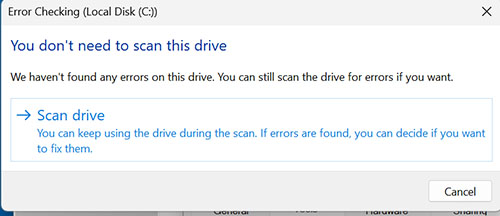 [Click on image for larger view.] Figure 3. Windows had not found any indication of disk errors.
 [Click on image for larger view.] Figure 4. Scanning the disk did not uncover any errors.
At this point, I was perplexed, but decided to try a couple more things. The next step in my troubleshooting efforts was to run the System File Checker. The System File Checker is a native command line utility that checks for corrupt system files and replaces damaged files with clean versions as necessary. You can run the System File Checker by opening an elevated Command Prompt window and entering this command:
SFC /ScanNow
The System File Checker did not locate any problems, so I decided to browse the Windows event logs to see if they contained any information pertaining to the cause of the problem. However, I was unable to find anything within the event logs that seemed problematic.
Ultimately, I just couldn't find any signs of damage or corruption. Everything that I had checked seemed to indicate that the disk was healthy. I did eventually figure out the cause of the warning, but it was something that I never would have expected.
Since I had thus far been unable to locate the source of the problem, I decided to run Windows Update in hopes that the update process might yield a clue as to the course of the problem. When I opened Windows Update however, I saw a message telling me that an update had been installed and that the system needed to be rebooted. I rebooted the system and the warning went away. It therefore seems that Windows displays a disk warning message when an updated related reboot is required.
While I am glad that Microsoft now seems to give you a visual indicator telling you that you need to reboot (as opposed to just forcing a reboot at an inconvenient time), I have to question the idea of using a hard disk warning icon for that purpose. After all, the warning icon is misleading and makes it seem as though there might be a problem with the disk. My guess is that this icon is probably going to lead to a lot of unnecessary help desk calls from end users. Hopefully, Microsoft will adopt a different type of indicator in the future.
About the Author
Brien Posey is a 22-time Microsoft MVP with decades of IT experience. As a freelance writer, Posey has written thousands of articles and contributed to several dozen books on a wide variety of IT topics. Prior to going freelance, Posey was a CIO for a national chain of hospitals and health care facilities. He has also served as a network administrator for some of the country's largest insurance companies and for the Department of Defense at Fort Knox. In addition to his continued work in IT, Posey has spent the last several years actively training as a commercial scientist-astronaut candidate in preparation to fly on a mission to study polar mesospheric clouds from space. You can follow his spaceflight training on his Web site.